- Local Licence (including the Free Trial),
- Dongle mounted locally,
- Dongle with Licence Manager.
- TDOC Version,
- Licenced Modules,
- Support Contract Expiry Date,
- No of Users [Dongle only],
- No of Uses [Dongle only].
- User Name, which may be updated by the User,
TDOC senses the licence type by detecting the existence or otherwise of the Local Licence. Without the Local Licence, then access to a dongle is required to enable a licence. A check is made for a locally mounted Dongle, and is that is not found, then it searches for a valid Licence Manager.
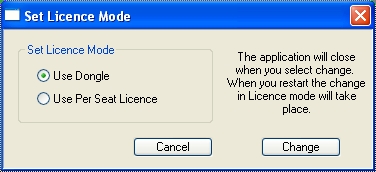
You will be prompted to confirm your decision following which the program will close. When you restart, the new licence mode operates. When changing from a Licence File to a Dongle, the Licence.dat file is renamed, and may be brought back into use by chnaging mode again.
- Codes identifying the storage device on which the software
resides, including:
- Hard Disk for a PC,
- USB Memory Stick.
- Codes identifying the licence information.
There are two things that can happen when the licence is read:
- If the codes are valid, then the software is licenced.
- If they are invalid, then the software will only operate in "Free Trial" mode.
In Free Trial mode, the software will not log onto a database over a certain size, and if it does logon, then once it reaches the trial size, additional information cannot be saved.
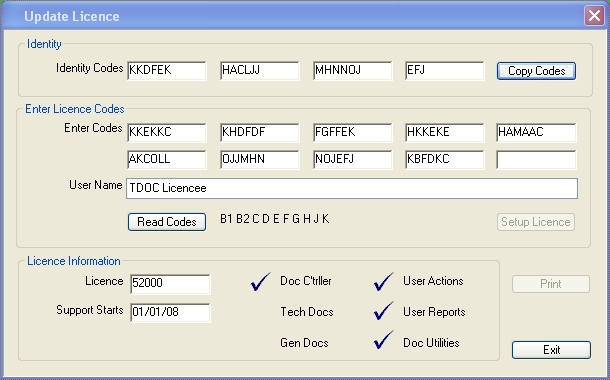
The process has three steps:
- Send the Encrypted Storage Device Codes to TDOC Projects,
- Import the Encrypted Licence Information Codes received from TDOC Projects,
- Setup the Licence.
To send the codes, use the "Copy Codes" button, which puts the codes into the Windows Clipboard. Then by using the CTRL and V keys paste the codes into an email or text file (as shown below) and send to TDOC Projects.
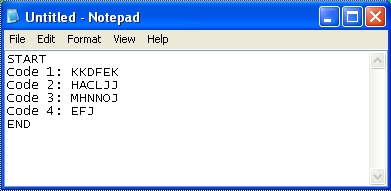
A similar set of codes will be sent back. Highlight the codes including the words START and END, and by using CTRL and C keys paste them into the Windows Clipboard. and use the "Read Codes" button to enter them into TDOC.
Lastly, use the "Setup Licence" button to create a revised Licence.dat file. When the licence codes are sent back to you, a Licence_99999_00.dat file will also be sent. This is identical to the one which is created by the "Setup Licence" button, and you may prefer to just copy this into the software directory manually, delete the existing one, and rename the one sent to Licence.dat.
The string of letters shown on the Update Licence screen above the progress of the many decryption and checks made, following the success of which the Licence Information will be displayed.
When a valid licence exists, the checks are carried out and the results dispalyed. The User Name may be edited and saved using the "Setup Licence" button.
- Single User on the single pc where the software is installed.
- Concurrent Licence on a server running the Licence Manager
Please see Other Information, Other Software, Hasp to download what is needed. From the same web site you may download other utilities including:
- Hasp Monitor - which allows the user to see the staus of the Licence Manager.
- Hasp Diagnostix - which collects system information for debugging problems.
On the machine on which the software is installed a configuration file called "NetHasp.ini" may be installed manually in the same directory as the software. This may be used to ensure a faster connection to the Dongle when it is being used in Concurrent Licence Mode.
Setup
- Each element in the licence must be separately updated.
- There is no alternative to reading the licnece codes.
- The status of the licence may be checked, and a report created.
Please see the screen below:
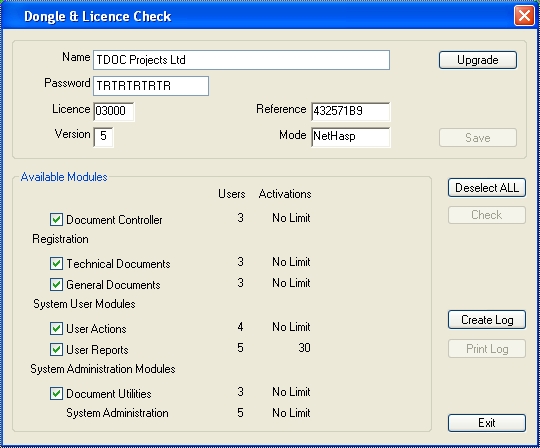
The Name and Password [not currently used] may be changed, and saved to the Dongle using the "Save" button.
The "Upgrade" button launches the facility to use the "Paste Codes" button to place the information in the Windows Clipboard. It is shown below: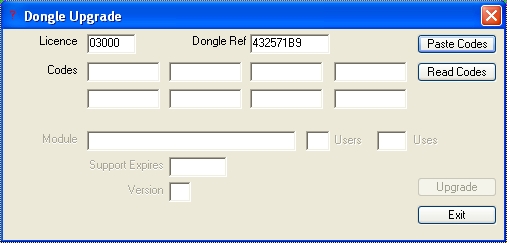
Once a set of codes has been imported using the "Read Codes" button, the "Upgrade" button to upgrade the licence information in the Dongle.
The upgraded information may be verified by using the "Check" button. The Support Contract Expiry date is shown in the Help, About from the Main Menu.