Contents

Overview
Paths
Printer
Email Etc
Browse & Background Colors
Other Settings
Toolbar Settings


Overview

User settings allow the user of the TDOC software to choose which database they wish to use, and to configure those things which relate to its local operation, such as which email client is to be used, what screen colours the user likes and which suit the users monitor.

User settings are accessed from the Main menu under Application.

User settings are stored in the TDOC.ini file which is located in the same directory where the software is installed. This file should NOT be manually edited, except on the express instruction of TDOC Support Staff.

Back to Contents


Paths There are two types of path shown in the screen below, plus two start-up options. The path types are:
  • Locations of Databases (at the top)
    • Datapath
    • Other Paths
  • Fixed locations for (below)
    • Report Path
    • Spool Path
    • Incoming Path

The paths can be changed at any time from the Main Menu, selecting Application, Paths. However, when any window is opened, this menu item is removed from the main menu.
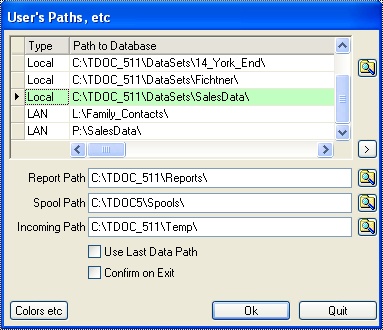
Set TDOC Paths
Databases The path to the currently selected database is highlighted. There are three things which can be done:
  • Select the path to a previously used database: Select the path, and double click it.
  • Remove the path to a previously used database: Select the path and use the Remove button (">"). This will NOT remove the database, only the reference to it in your list of previously used databases.
  • Add the path to a database which is not listed: Use the button with the Folder Icon to locate a new path.
Report Path The path to the Report Layouts. Without access to the report layouts (.rpt files), no documents or reports can be generated.
Spool Path The path which is used for temporary files, and where generated documents are initially generated. A folder may be selected or a new folder created using the button with the Folder Icon. If PDF995 is installed, ensure that it is configured to use the same directory. See Other Settings below
Incoming Path The initial default path which is used when a document is to be located for attachment to the database. A folder may be selected or a new folder created using the button with the Folder Icon.
Start-up Options There are two options which may be set:
  • The Use Last Data Path simply skips the System Settings screen, and attempts to log onto the current Data Path.
  • The Confirm on Exit option causes a confirmation message to be shown thus preventing accidentally leaving the application.
Colors Please see the Colors section below.
The tooltip for this button shows the location from which the software is launched, the version, and build date.
Back to Contents

Printer This allows the user to access the windows dialog for setting the default printer.
Back to Contents

Email Etc This allows the user to configure the way in which they communicate with their trading partners. This includes
  • The location of PHP scripts for the HTML forms which are sent to communicate back to the user,
  • The way in which email is used for despatching information from within TDOC via the "Email Button",
  • The configuration for incoming mail is SMTP is used,
  • The details of an FTP server for use when issuing Technical Documents.
Email etc Setup
PHP Scripts The location of a script to process HTML forms on an internet server remote to the user. The script may be tested, and if the TDOC PHP scripts are adopted, the following happens:
  • The browser is launched with a Test HTML form, and a test button,
  • The PHP script is accessed and if located, indicates its success
Step 1 - Test Form
Step 2 - Script Replies
Email Type There are two ways of sending email:
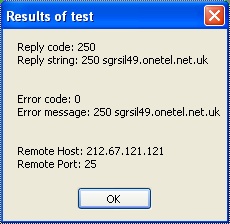
  • Directly using the SMTP Protocol, in which case the mail server information must be completed. An error code of 0 indicates a successful test. Optionally, the POP3 information may be completed to enable direct receipt of email.
  • Indirectly using an Email Client, when one of the following may be chosen
    • MAPI
    • Groupwise (from Novell)
    • Lotus Notes (from IBM)
    • Outlook (including Express)
Successful SMTP Test Result
FTP FTP (File Transfer Protocol) may optionally be used when issuing Technical Documents by Email. Please see the earlier section entitled About Networks; Using the Internet with FTP and Email. The following information must be provided:
  • The internet address of the server,
  • The user name to enable a logon,
  • The password associated with the user name,
  • The directory on the server under which a sub-directory to which uploads will be made,
  • Optionally the name of a proxy server if that is the way the user connects to the internet.

The setup information may be tested to ensure that it works. The test operates as follows, with a message displayed after each step to enable an alternative FTP connection to be established to view what is happening :

  • A connection to the server is established
  • The current (root) directory is displayed
  • The upload directory is displayed
  • The TDOC.ini file is uploaded
  • The TDOC.ini file is deleted, and the connection to the server is closed.
Back to Contents

Browse & Background Colors There are two sets of colour settings as follows:
  • Titles of columns in TDOC Browses. Colours are used to indicate the following:
    • if a column is indexed or not,
    • the currently selected column
    • columns which restrict searching.
  • Background to the application - color and whether it is graded,
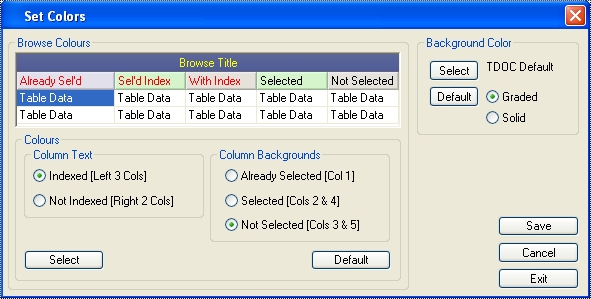
Setting Colours
Back to Contents

Other Settings This allows the user to specify the format of generated documents, and (in future) the type of scanner attached.
Other Settings - Output Format & Scanner
Export Type generated documents may be created as one of the following types:
  • PDF
  • Word 95
  • Word 97
  • HTML
  • Text
  • Excel
PDF995 Although the embedded report generator (ReportPro) purports to support PDF output, it doesn't do so with any degree of acceptable integrity for various reasons, and output will be distorted. To ensure that PDF generation is flawless, it is necessary to download, purchase, and install PDF995 from http://www.pdf995.com. PDF995 must then be configured by altering the PDF995.ini file by adding the following into the Parameters Section of the PDF995.ini file.
[Parameters]
Quiet=0
Autolaunch=0
Output File=SAMEASDOCUMENT
Output Folder="C:\TDOC5\Spools"
Please ensure that the Output Folder matches the specified Spool File directory as set up in Paths - see above. If it doesn't then the file will be exported elsewhere.
Scanner TDOC does not currently support direct scanning. If you require this feature, please contact TDOC Support.
Back to Contents

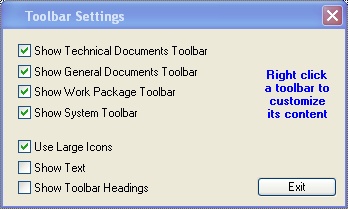
Toolbar Settings When the application is closed, the configuration of the Users Toolbars is saved.
Select Toolbars This allows the user to decide:
  • Which toolbars to show,
  • Which Icon Size to use and whether to show a Description.
  • Whether to show the Toolbar Headings.
Toolbar Settings
Immediate Options Right clicking on a Toolbar enables:
  • The Icon Size and Description to be set.
  • The Toolbar Headings to be shown.
  • The Toolbar to be Customised.
    • Icons can be removed or reordered at any time by using the Shift Key and Left mouse button to drag an Icon.
Toolbar
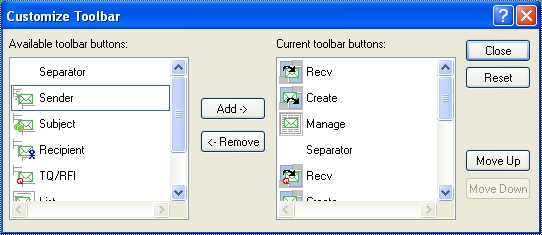
Customise Toolbars Each Toolbar may be customised using the windows dialog below.
Cusatomise Toolbar
Back to Contents

Continue to Report Layouts